
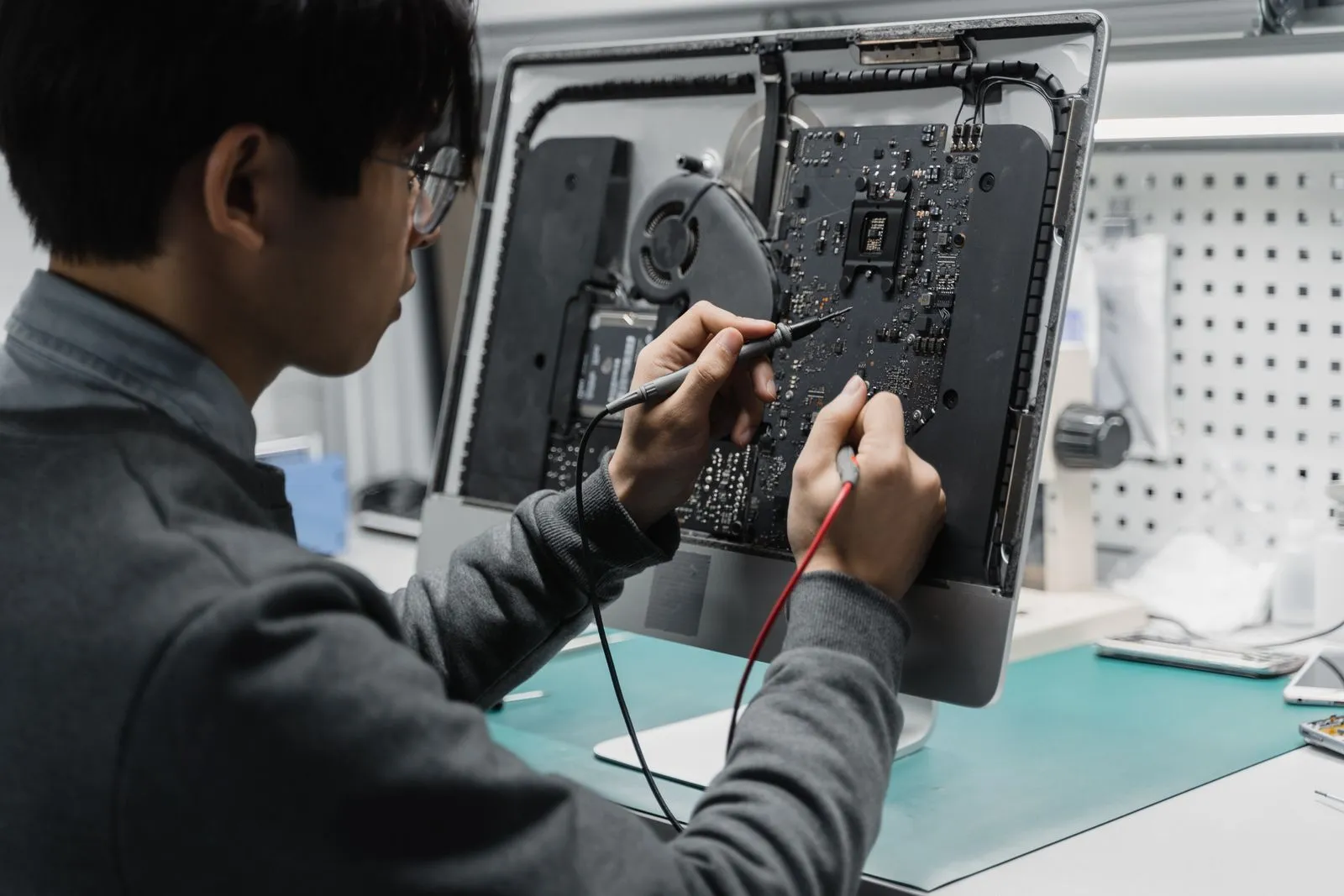
When a computer won’t turn on, the cause may be a loose cable, drained battery, or display problem—not a failed computer. Start with checks that do not require opening the device or changing its settings. Note what happens when you press the power button, such as lights, fan noise, or error messages. Those details can help you decide whether to continue with basic troubleshooting or have a technician inspect the computer.
Check the power source
Confirm that the power cable is firmly connected to both the computer and the wall outlet. If you use a power strip or surge protector, check its switch and connections, or plug the computer directly into a known-working outlet. Test the outlet with another device. For a desktop, make sure the power supply switch on the back is set to “on,” if your model has one.
For a laptop, inspect the adapter and cable for visible damage, then connect the charger directly to a working outlet. Look for a charging light and give a drained battery time to charge before trying again. If you have a compatible, manufacturer-approved charger, testing it may help identify a faulty adapter. Do not use a charger with damaged wiring, unusual heat, or a mismatched rating.
Rule out a display problem
A computer may be running even when the screen stays black. Listen for a fan or startup sound, and check whether power or keyboard lights come on. On a desktop, make sure the monitor is powered on and connected to the computer. Select the correct monitor input, and reseat the video cable at both ends. If available, try a different cable or monitor.
On a laptop, raise the screen brightness and disconnect any external monitor or dock before trying again. If the computer appears to start but the built-in screen remains blank, avoid repeatedly forcing shutdowns. A failed display, graphics component, or internal connection may need inspection, especially if the screen is cracked or the computer was recently dropped.
Try one safe restart
Disconnect nonessential accessories such as USB drives, printers, and docking stations. Then press the power button once and wait a minute to see whether the computer starts. If it is completely unresponsive, disconnect the charger and accessories. For a laptop with a removable battery, remove it only if the manufacturer’s instructions allow it; then reconnect power and try once more.
Avoid opening the case, removing internal components, or using online instructions that ask you to short pins or bypass safety features. Stop immediately if you notice a burning smell, smoke, liquid damage, a swollen battery, or unusual heat. Unplug the device if it is safe to do so. These signs call for professional attention, not further home troubleshooting.
Know when to get help
Contact a repair technician if the computer remains dead after you confirm the outlet, power connections, and display; if the charger or port appears damaged; or if it repeatedly shuts off during startup. Be ready to describe the model, what happens when you press the power button, any recent drops or spills, and the steps you already tried. This information can make diagnosis more direct.
If the computer contains important files, tell the technician before authorizing work, particularly if you hear clicking, see a storage error, or suspect liquid damage. Avoid repeated power attempts when you suspect a hardware fault, since they may complicate diagnosis. San Diego PC Care can inspect a computer that will not start and help identify the next practical step.
Start with the outlet, cables, charger, and display, and stop if you find damage or signs of overheating. If the computer still will not start, a technician can check the power system and internal components safely. Gather the symptoms and troubleshooting steps you observed before arranging an inspection.