
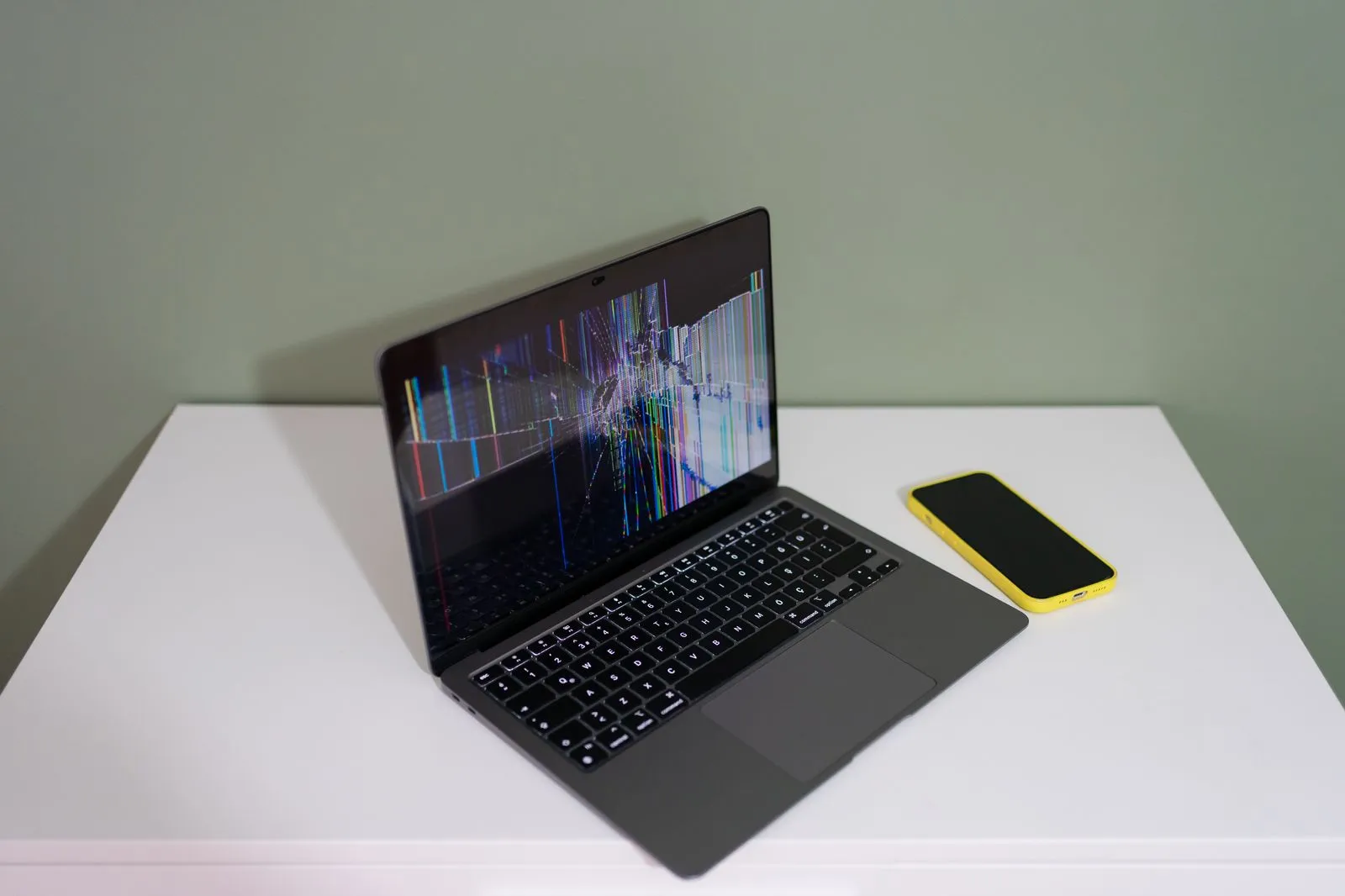
A damaged or malfunctioning laptop display can make work difficult, but not every screen problem has the same cause. A crack may point to physical damage, while flickering or a blank display could involve the screen, its connections, or another component. Knowing what you see and when it happens helps a repair technician narrow down the issue. Here’s what to check, what can affect a repair, and what information to share when asking for help.
Recognize Common Screen Problems
Visible cracks, dark blotches, colored lines, or areas that no longer respond to touch usually indicate physical screen damage. The laptop may still turn on and produce sound even when the display is hard to use. Avoid pressing on damaged areas; pressure can spread the damage or make sharp fragments a hazard.
Flickering, dimness, or a screen that goes black intermittently can have several causes. The display cable, graphics hardware, power settings, or the screen itself may be involved. Note whether the problem appears during startup, after the laptop warms up, or when you move the lid. These clues help distinguish a screen fault from a broader display issue.
Check Before Requesting Repair
First, connect the laptop to power and restart it if you can do so safely. Check brightness settings and disconnect accessories that might affect display output. If available, connect an external monitor or television. A clear image on the external display can help show whether the laptop is running even when its built-in screen is not.
Do not open the laptop or push a damaged panel back into place unless you have the right repair experience. Screens and internal connectors can be fragile, and some models require model-specific parts and tools. If the display is cracked, keep liquids away and shut the laptop down if damage exposes internal components or the device behaves unusually.
Understand Repair Considerations
The repair approach depends on the laptop’s make and model, the type of display, and the symptoms. Some repairs involve replacing the screen panel; others may require checking a cable, hinge, or graphics-related component first. A technician may need to inspect the laptop before confirming the cause, the parts required, and the repair plan.
Before approving work, ask what the assessment includes, whether the proposed repair addresses the symptoms you described, and whether your files are expected to remain untouched. Back up important data if you can. Screen repairs often do not require file access, but it is sensible to ask how the device will be handled and to share any privacy or login constraints.
Share Useful Details
When requesting help, provide the laptop’s brand and exact model, if available. Describe the display symptoms in plain language, when they began, and whether the laptop was dropped, pressed, exposed to liquid, or recently repaired. Mention any warning lights, unusual sounds, or changes in performance that happened at the same time.
Explain what you have already tried, including whether an external monitor works and whether the issue changes when you adjust brightness or move the lid. Photos of visible damage can help with an initial discussion, but they do not replace an inspection. San Diego PC Care can use these details to understand your request and discuss next steps.
A clear symptom description and accurate laptop model give a technician a stronger starting point. Note when the issue occurs, avoid putting pressure on a damaged display, and back up important files when possible. If your laptop screen needs attention, contact a repair professional to discuss the symptoms and arrange an assessment.